On this page
People, Implementation & Support
Understand Nironcare user roles, hospital implementation, training, and the available paths for support and service enquiries.
Users and Roles
Roles at a Glance - Patient-facing roles
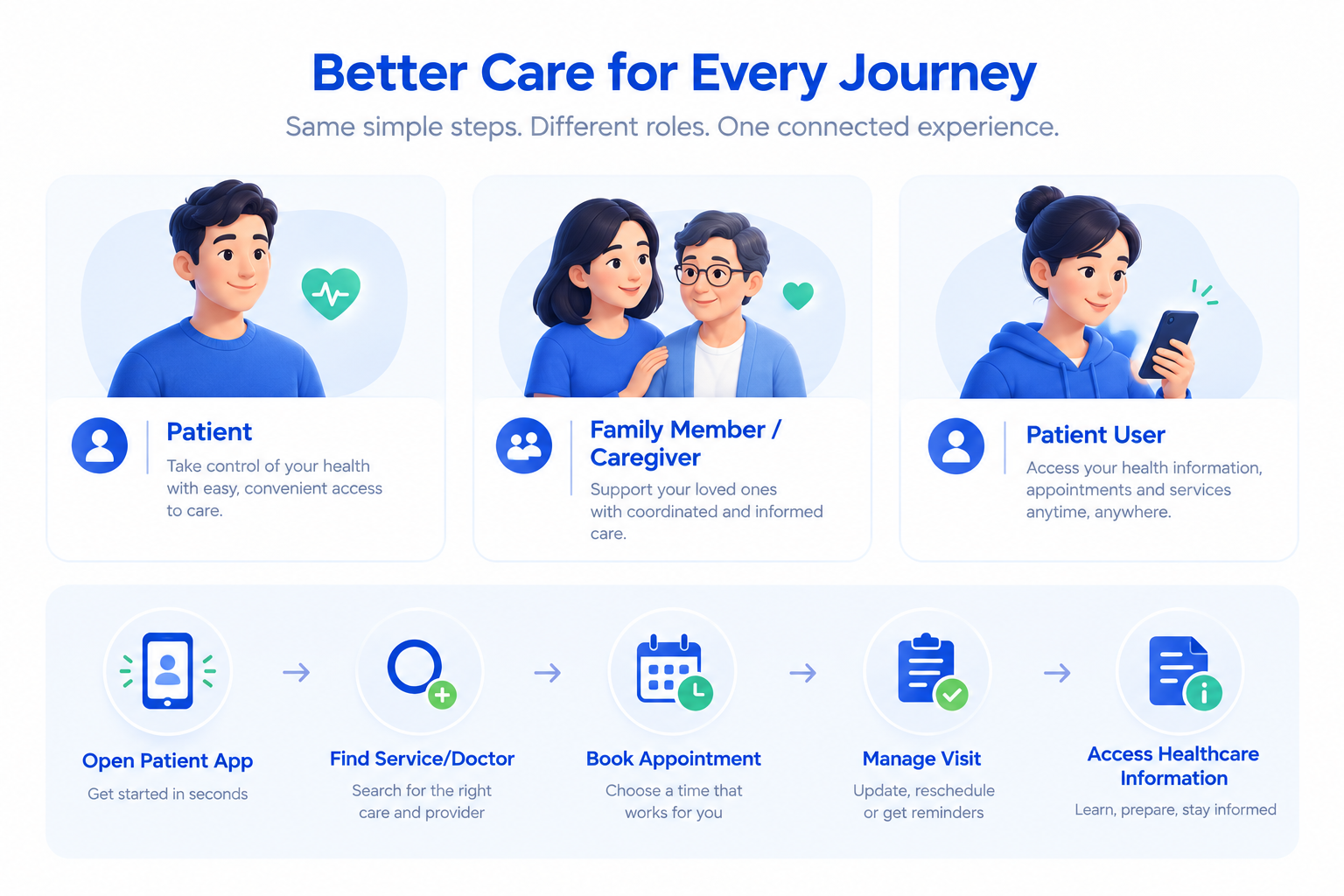
Patient-facing users include patients and people accessing healthcare services through the NironCare Patient App. They can use digital services such as appointment booking, health record access, communication, and healthcare service management. Patient-facing users access NironCare mainly through the Patient App to manage their healthcare services.
-
Patient - Uses the Patient App to find hospitals and doctors, book appointments, manage queues, communicate with healthcare providers, and access available health information.
-
Family Member / Caregiver - Where supported, can use linked family member profiles to help manage appointments and healthcare services.
-
Patient User - Can access available patient services according to the features and permissions provided by the platform.
Roles at a Glance - Operational roles
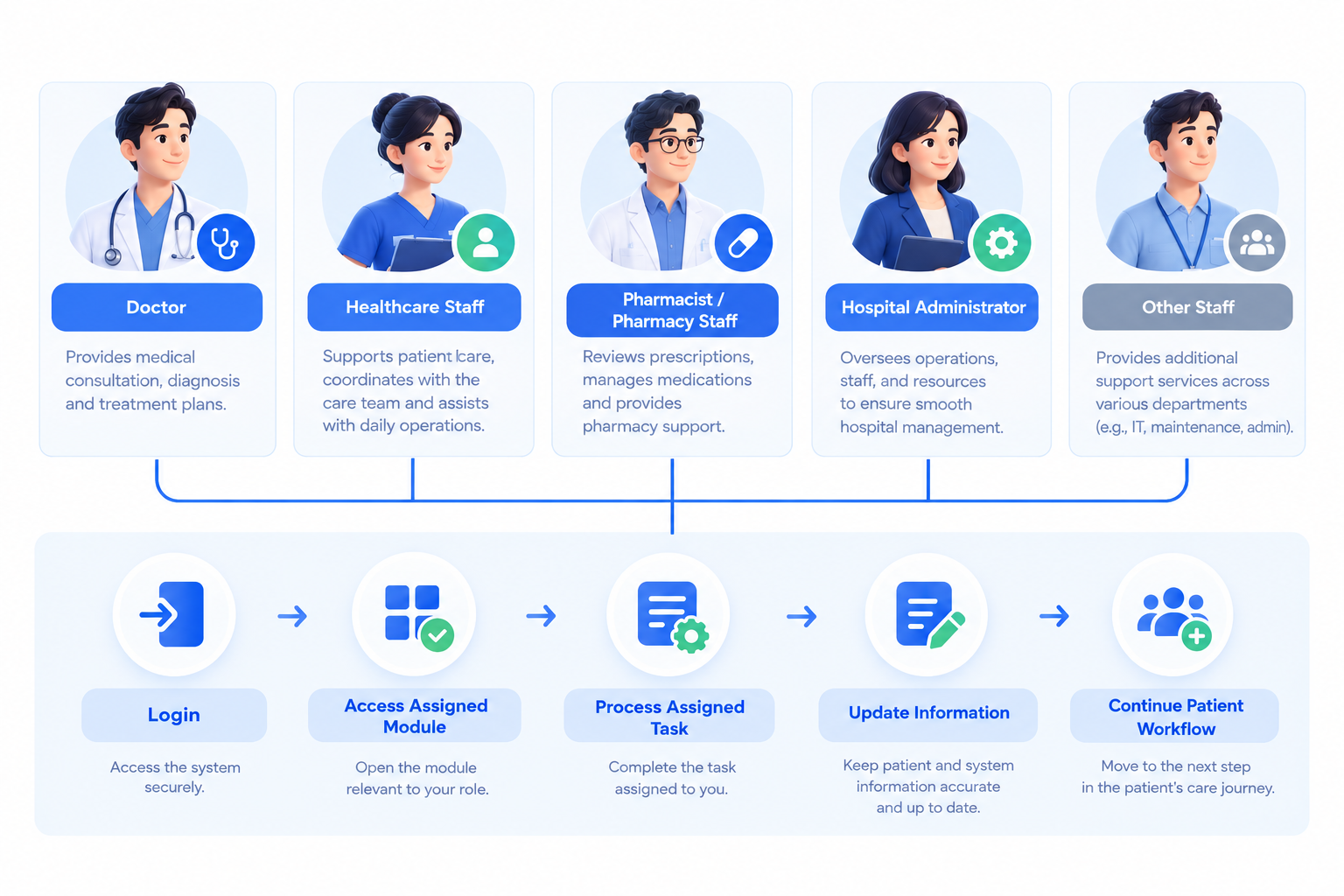
Operational users include doctors, healthcare professionals, pharmacists, clinic staff, and administrators. Their access depends on their role and permissions within the NironCare platform. Doctor - Manages consultations, patient information, prescriptions, and teleconsultations where supported. Healthcare Staff - Supports patient care, registration, queue, and other assigned healthcare services. Pharmacist / Pharmacy Staff - Manages prescriptions, medicines, and pharmacy-related activities. Hospital Administrator - Manages hospital operations, users, permissions, services, and available administrative functions. Other Staff - Accesses functions according to the assigned role and permissions.
Implementation and Training
Hospital Implementation Overview - Preparation
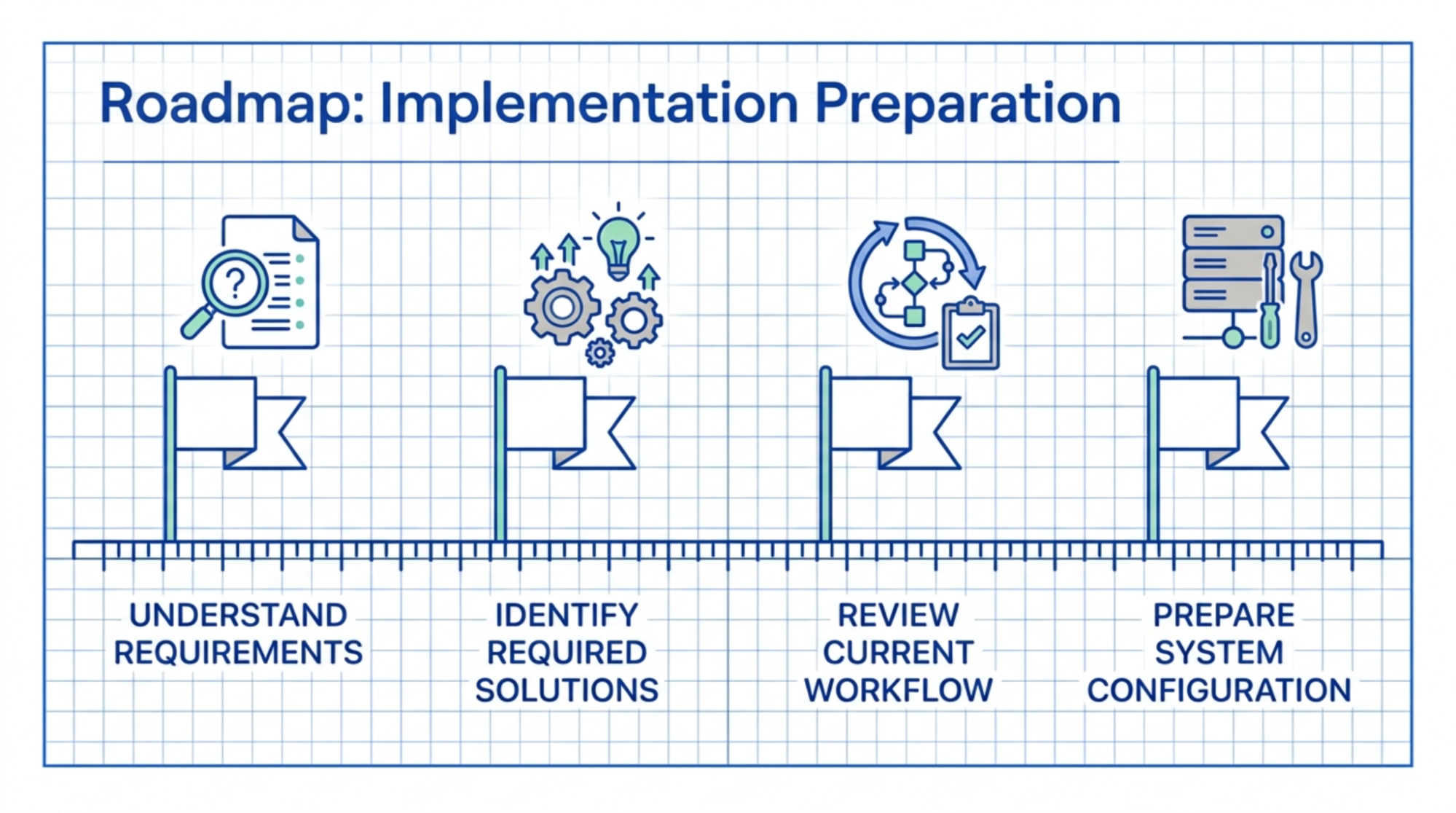
Implementation preparation involves understanding the healthcare organization's requirements, services, users, and operational environment before deploying the required NironCare solutions. Understand Requirements -> Identify hospital services, departments, users, and operational needs. Identify Required Solutions -> Determine which NironCare modules and services are required. Review Current Workflow -> Understand how the hospital currently manages patient and operational processes. Prepare System Configuration -> Prepare the required environment, users, services, and settings.
Hospital Implementation Overview - Readiness
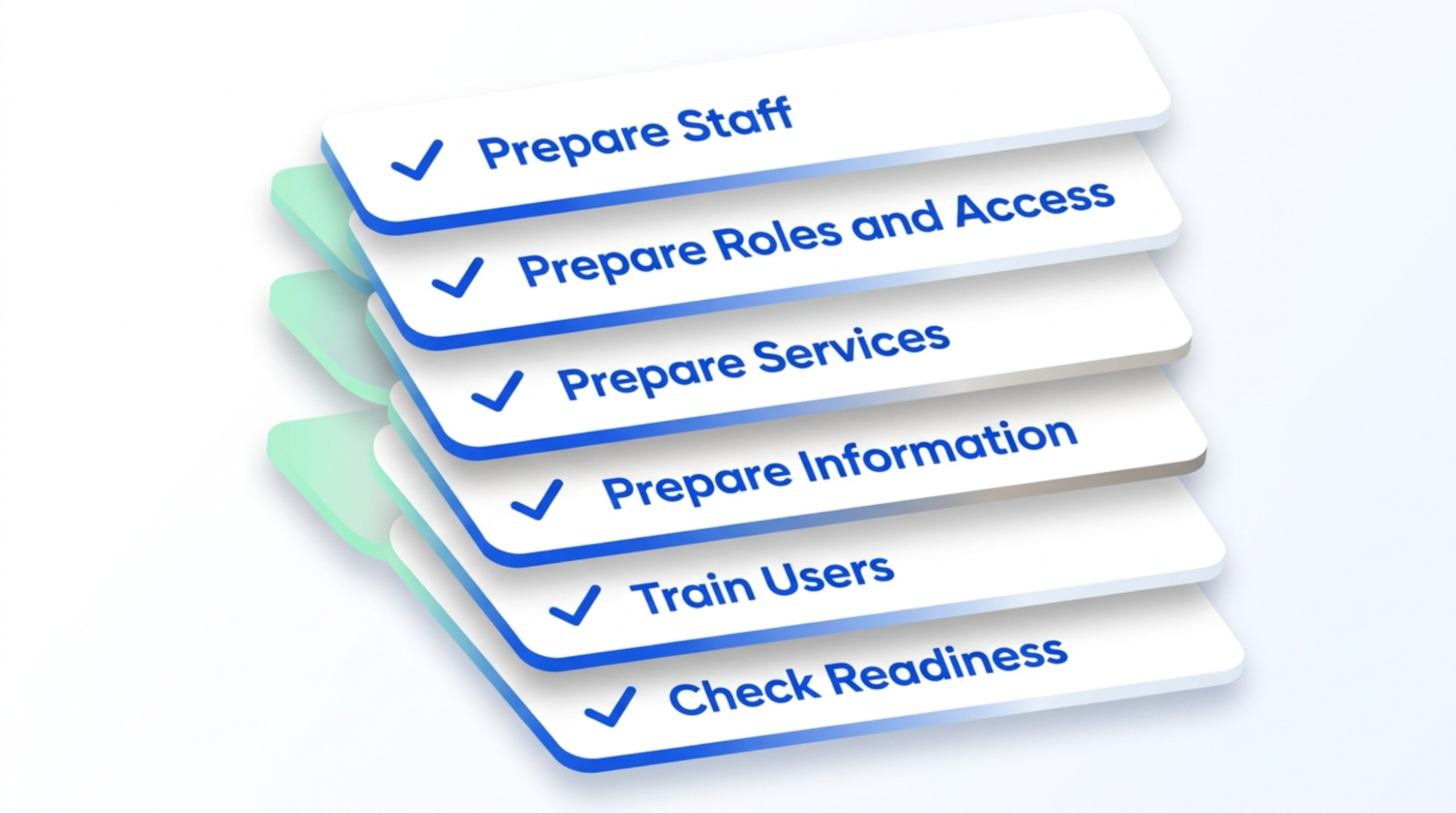
The hospital should prepare its staff, services, basic information, and working process before starting with Nironcare. This helps make sure the system is ready to support the hospital's daily work. Before launch, the hospital prepares its people, information, and working processes.
-
Step 1: Prepare Staff -> Identify staff who will use NironCare.
-
Step 2: Prepare Roles and Access -> Assign appropriate roles and permissions.
-
Step 3: Prepare Services -> Confirm departments, healthcare services, and operational workflows.
-
Step 4: Prepare Information -> Prepare the required hospital and operational information.
-
Step 5: Train Users -> Help staff understand their assigned functions and daily tasks.
-
Step 6: Check Readiness -> Confirm that users, workflows, and system setup are ready for operation.
Hospital Implementation Overview - Launch
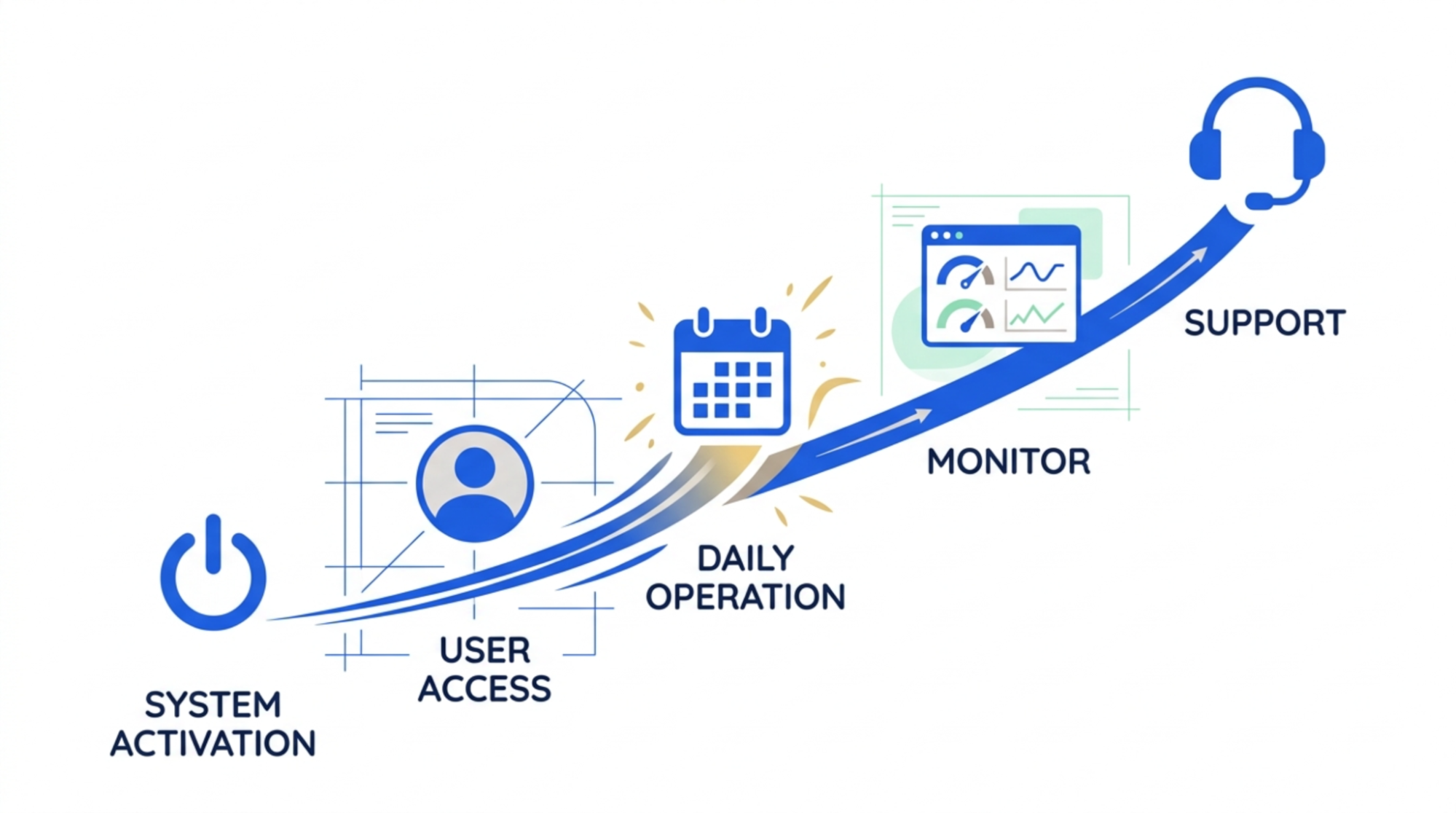
Launch is the stage where the configured NironCare solution becomes available for actual healthcare operations and users begin working with the system.
-
Step 1: Activate System -> Make the configured solution available to authorized users.
-
Step 2: Users Access System -> Staff begin using NironCare according to their assigned roles.
-
Step 3: Start Daily Operations -> Hospital begins managing supported services through the system.
-
Step 4: Monitor Usage -> Identify issues or questions that occur during early operation.
-
Step 5: Provide Support -> Support users and address issues as required.
Training & Support Overview - Training
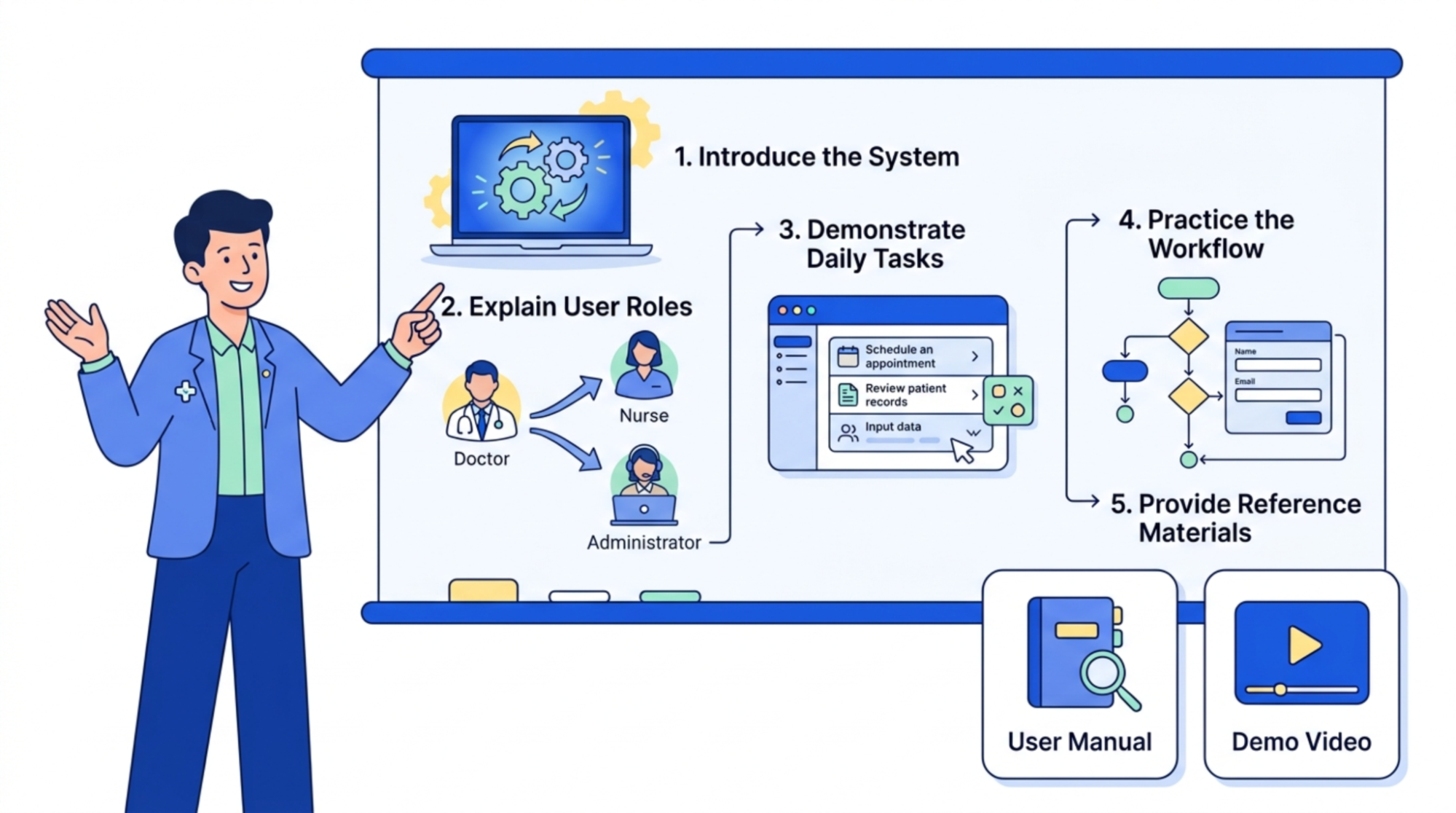
Nironcare provides training to help users understand how to use the system and its services. Training can guide users through the main features and daily tasks, making it easier for them to use the system correctly and confidently. NironCare training helps users understand the system and perform their daily tasks correctly.
-
Introduce the System - Explain the relevant NironCare solution and its purpose.
-
Explain User Roles - Show users the functions available according to their roles.
-
Demonstrate Daily Tasks - Guide users through common workflows and system functions.
-
Practice the Workflow - Allow users to follow the process and become familiar with the system.
-
Provide Reference Materials - User manuals and other documentation can be used as references for users after training.
Training & Support Overview - Support
If you have a problem while using NironCare, you can contact the support team for help. Support is available through the contact options provided in the app, such as the 24/7 hotline, email, or Telegram. Users can contact NironCare support when they experience problems or need assistance.
-
1: Check Help Resources -> Open Help Center / FAQ to look for available information.
-
2: Contact Support -> If the issue cannot be resolved, contact the available support channel.
-
3: Explain the Problem -> Provide relevant information about the account, service, or issue.
-
4: Receive Assistance -> Support team assists with the reported problem.
Support and Contact
Contact Nironcare - Service enquiry
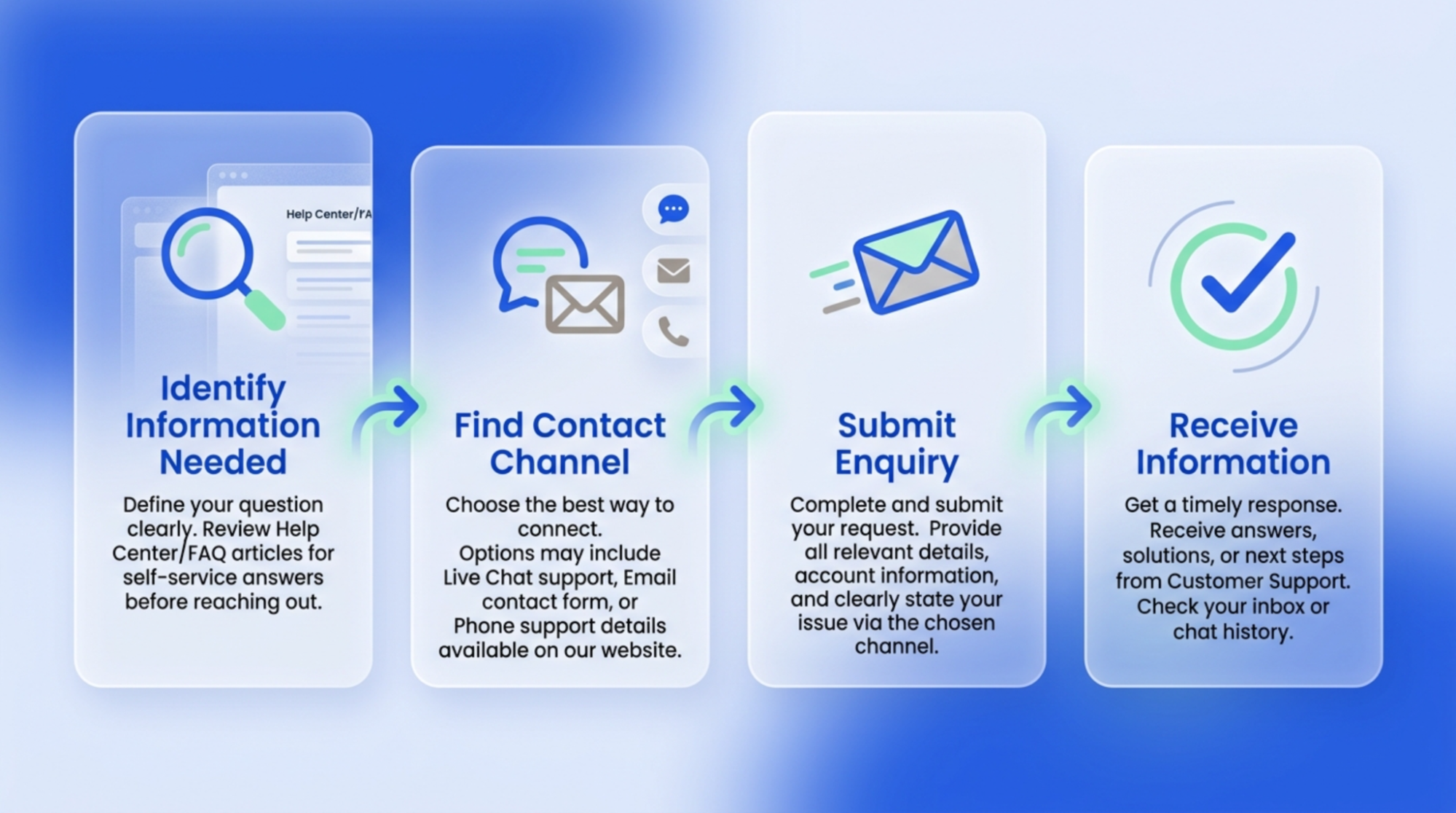
If you want to ask about NironCare's services before using them, you can contact NironCare through the available contact channels to get more information.
-
1: Identify Information Needed -> Determine the service or product information required.
-
2: Find Contact Channel -> Access the available NironCare contact or service information.
-
3: Submit Enquiry -> Contact NironCare through the available channel.
-
4: Receive Information -> NironCare provides relevant information about its services.
Contact Nironcare - Existing-user help
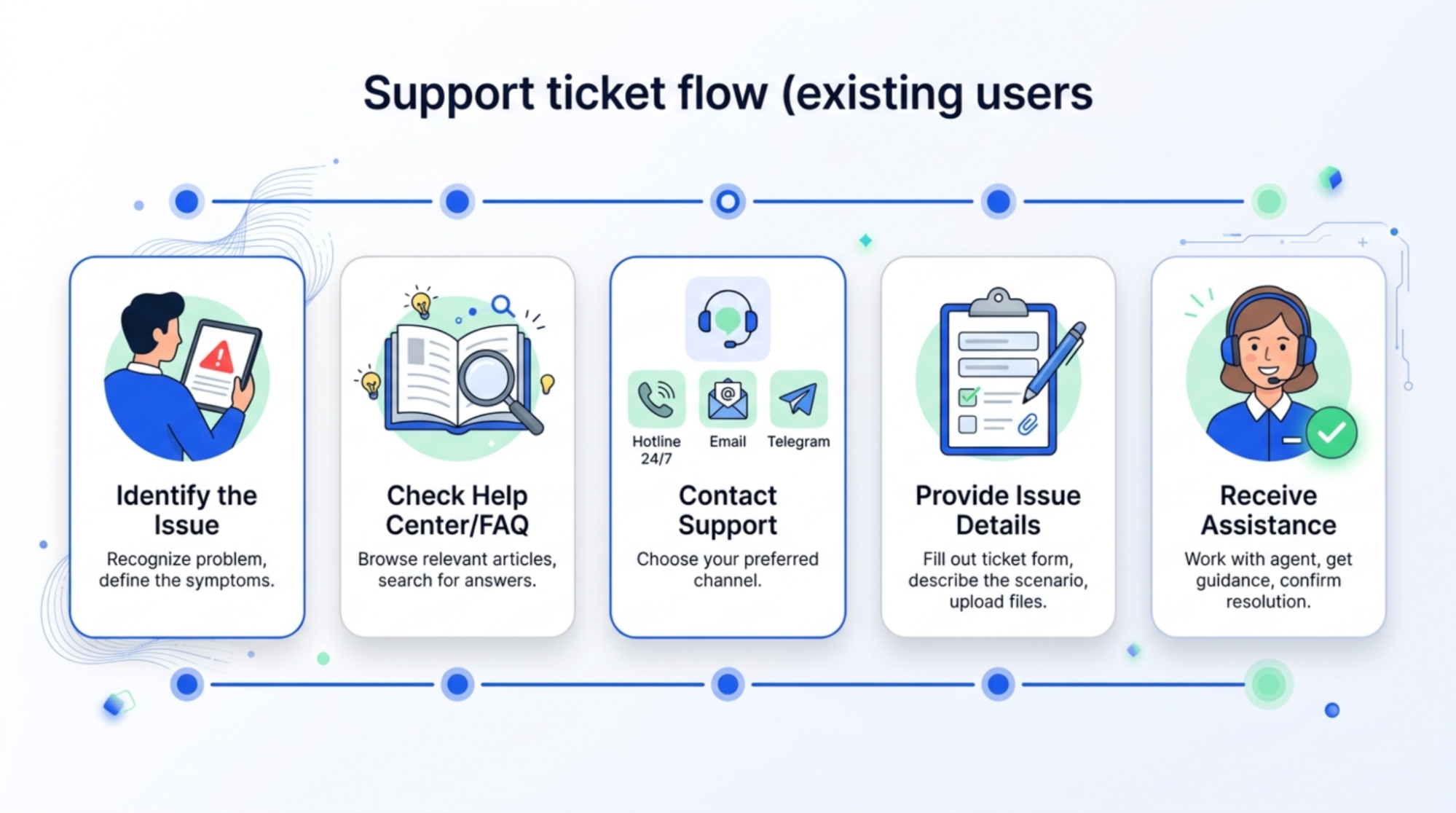
If you are already using NironCare and need help with your account, appointment, payment, or another problem, contact the support team through the available hotline, email, or Telegram channels.
-
1: Identify the Issue -> Determine what problem or assistance is required.
-
2: Check Help Center / FAQ -> Look for an available solution.
-
3: Contact Support -> Use the available support channel if further assistance is needed.
-
4: Provide Issue Details -> Provide the information needed for support to understand the problem.
-
5: Receive Assistance -> Support team helps resolve or guide the user through the issue.