On this page
Patient and Doctor Products
Patient Mobile App - Getting Started
Getting Started with the Patient App
To get started with the Patient App, the user can follow these steps:
-
Go to the Google Play Store or App Store to download the Patient App.
-
Open the Patient App.
-
If the user already has an account, enter the account details and Sign In.
-
If the user does not have an account, click Sign Up, located below the Sign In button.
-
Fill in the required information shown in the app.
-
Click Next to continue creating a new account.
-
Follow the instructions shown in the app to complete the account registration.
Patient Mobile App - Finding care
The Patient Mobile App allows patients to find hospitals and doctors, view available healthcare services and appointment schedules, check doctor availability, and book an in-person appointment. Patients can select their preferred hospital, doctor, date, and time, review the appointment information, and confirm the booking through the app. After booking, the appointment can be viewed and managed from the My Appointments section. Patients can also book an appointment for a linked family member by selecting the family member during the booking process.
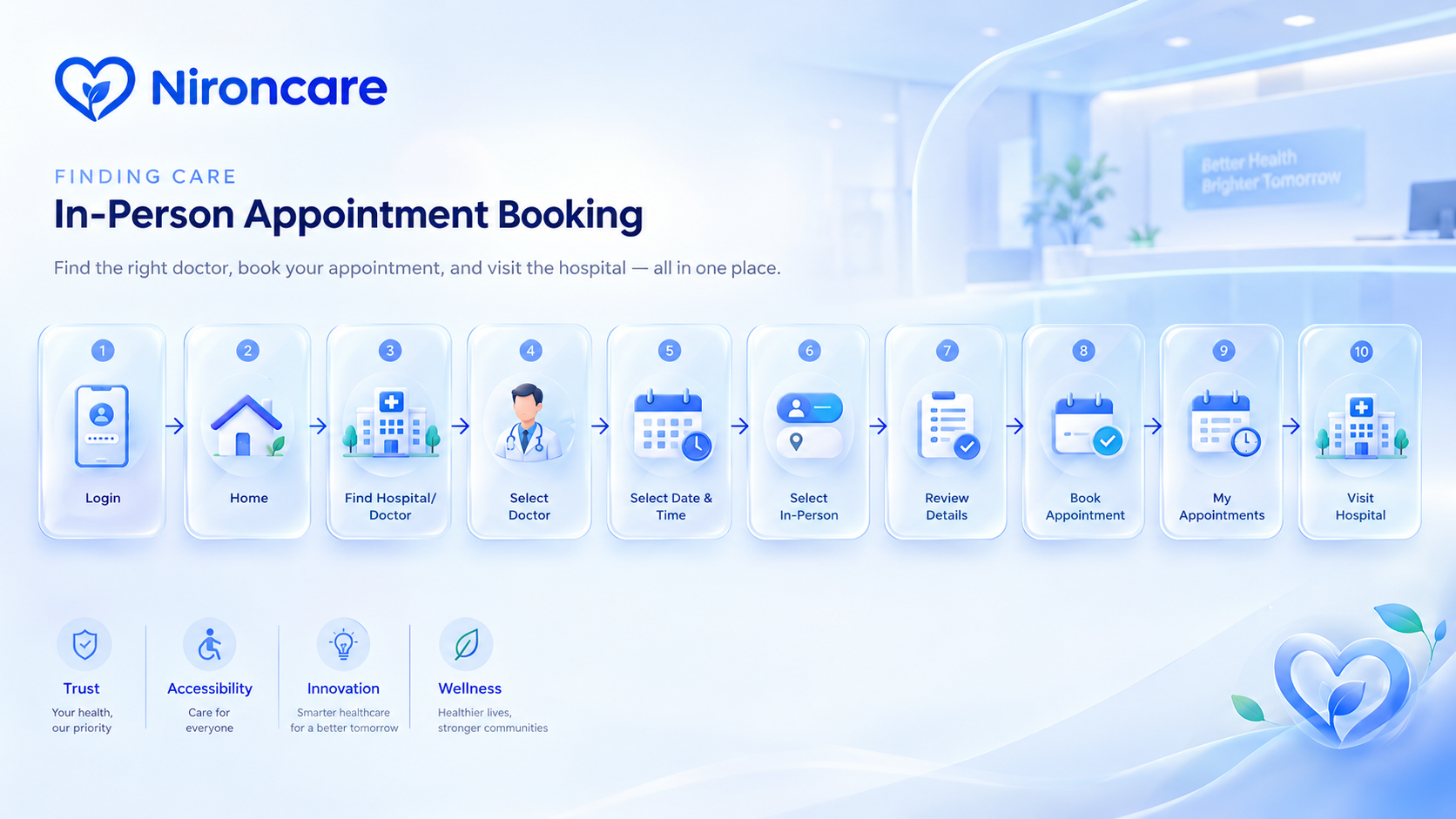
To find and book an in-person healthcare service, the user can do the following:
-
Open the Patient App and log in to the account.
-
Go to the Home page.
-
Select the option to find a hospital or doctor.
-
Search for or select a hospital or doctor.
-
View the available information, services, and appointment times.
-
Select the preferred doctor, date, and time.
-
Select In-Person as the consultation type, if available.
-
Review the appointment details.
-
Select Book Appointment to confirm the booking.
-
Check the booked appointment in the My Appointments section.
-
Patients can also book an appointment directly from the doctor or hospital page, or from the My Appointments section.
-
To book an appointment for a family member, link the family member to the account and select the family member when making the booking.
-
Follow the appointment information and visit the selected hospital at the scheduled date and time.
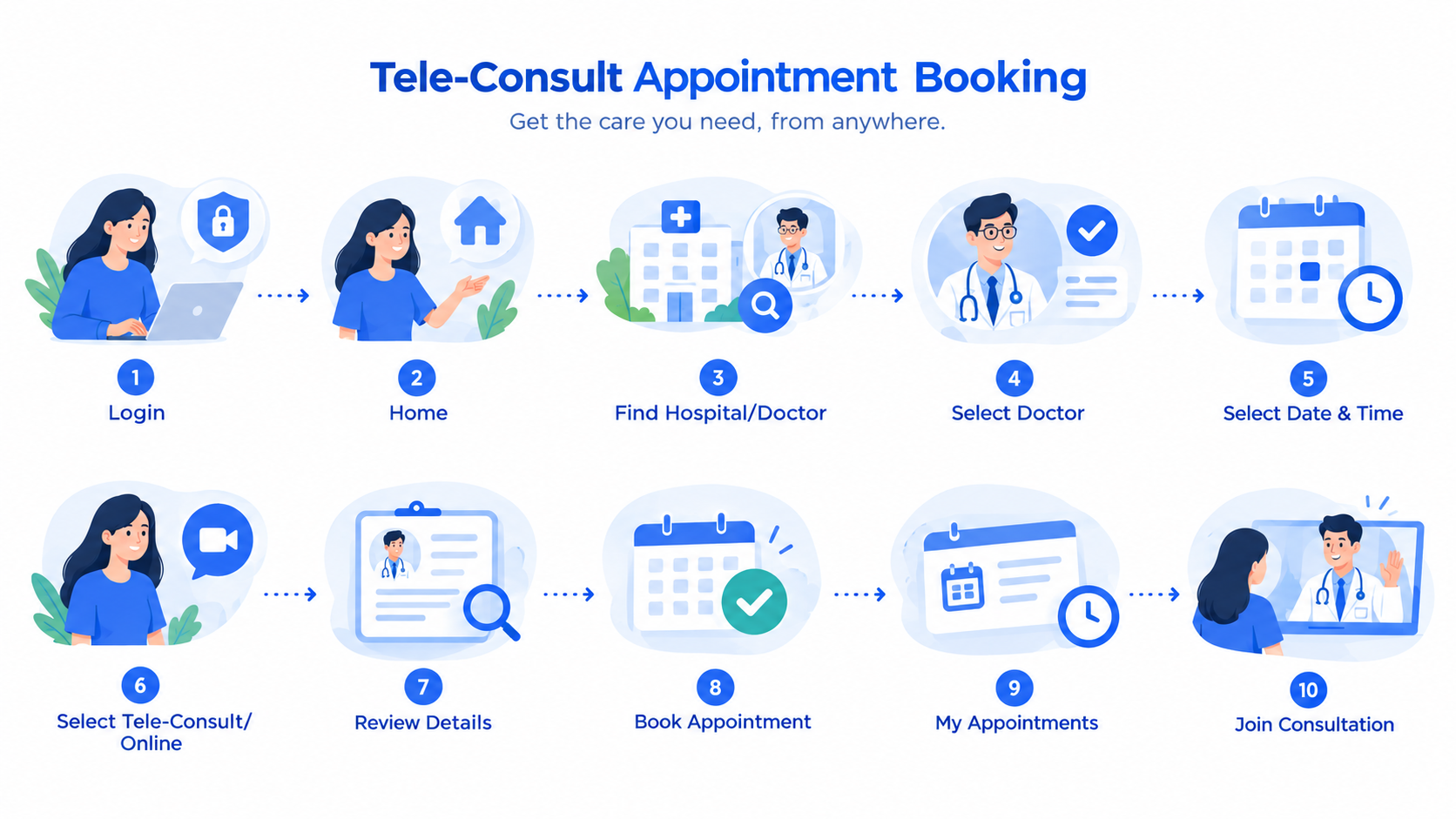
To find and book a tele-consultation, the user can do the following:
-
Open the Patient App and log in to the account.
-
Go to the Home page.
-
Select the option to find a hospital or doctor.
-
Search for or select a hospital or doctor.
-
View the available information, services, and appointment times.
-
Select the preferred doctor, date, and time.
-
Select Tele-Consult or Online as the consultation type, if available.
-
Review the appointment details.
-
Select Book Appointment to confirm the booking.
-
Check the booked appointment in the My Appointments section.
-
Patients can also book an appointment directly from the doctor or hospital page, or from the My Appointments section.
-
To book an appointment for a family member, link the family member to the account and select the family member when making the booking.
-
Patients can use the NironCare Bot to ask health-related questions and get information through the app.
-
At the scheduled time, open the appointment from My Appointments and join the online consultation through the app.
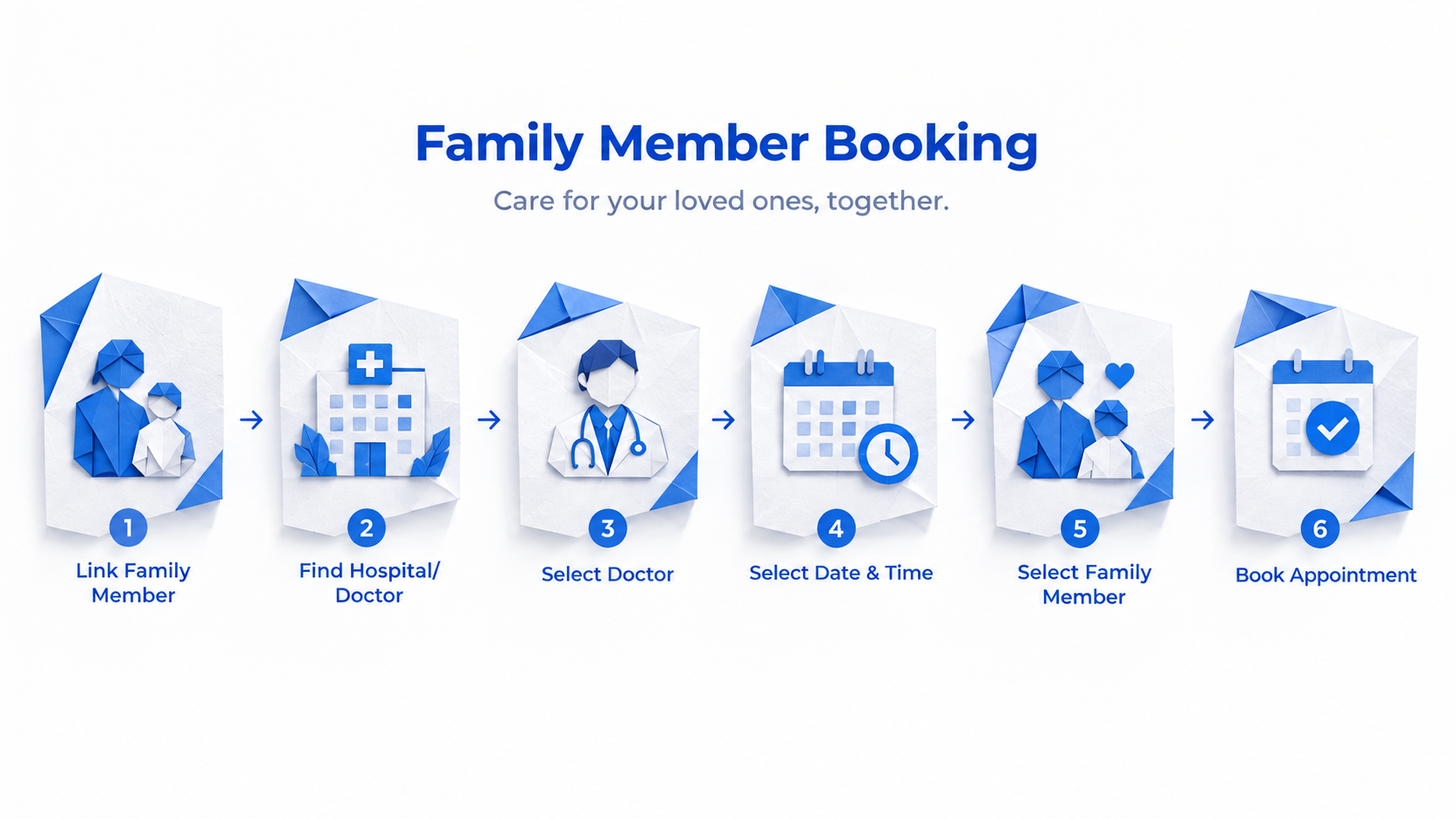
Patients can also book an appointment for a linked family member by selecting the family member during the booking process.
Patient Mobile App - Managing care
The Patient Mobile App allows patients to find healthcare services, view and manage appointments, meet with doctors online or in person, communicate with healthcare providers, and receive healthcare support through the app. Patients can use the Patient App to:
-
View and manage appointments - View upcoming and previous appointments, book appointments, and manage scheduled appointments with doctors.
-
Meet with doctors - Book and attend consultations either online or in person, depending on the available service.
-
Chat with doctors - Communicate with doctors through the in-app chat feature when available.
-
Book appointments for family members - Link family members to the account and book appointments on their behalf.
-
Use the Health Bot - Ask health-related questions and receive health information and support through the Health Bot.
-
Make an Emergency Call - Quickly access the emergency call function when urgent medical assistance is needed.
-
Follow healthcare services - View appointment information, healthcare services, and related updates in one place.
Patient Mobile App - Health documents
The Patient Mobile App provides a Medical Documents feature that allows patients to view and manage their healthcare documents in one place. Patients can add their own documents to My Folder and access documents received from doctors, including Laboratory Orders, Imaging Orders, Prescriptions, Clinical Notes , and Medical Certificates. Documents may be available as PDF files or documents generated directly from the NironCare system.
My Folder - Manage Personal Documents
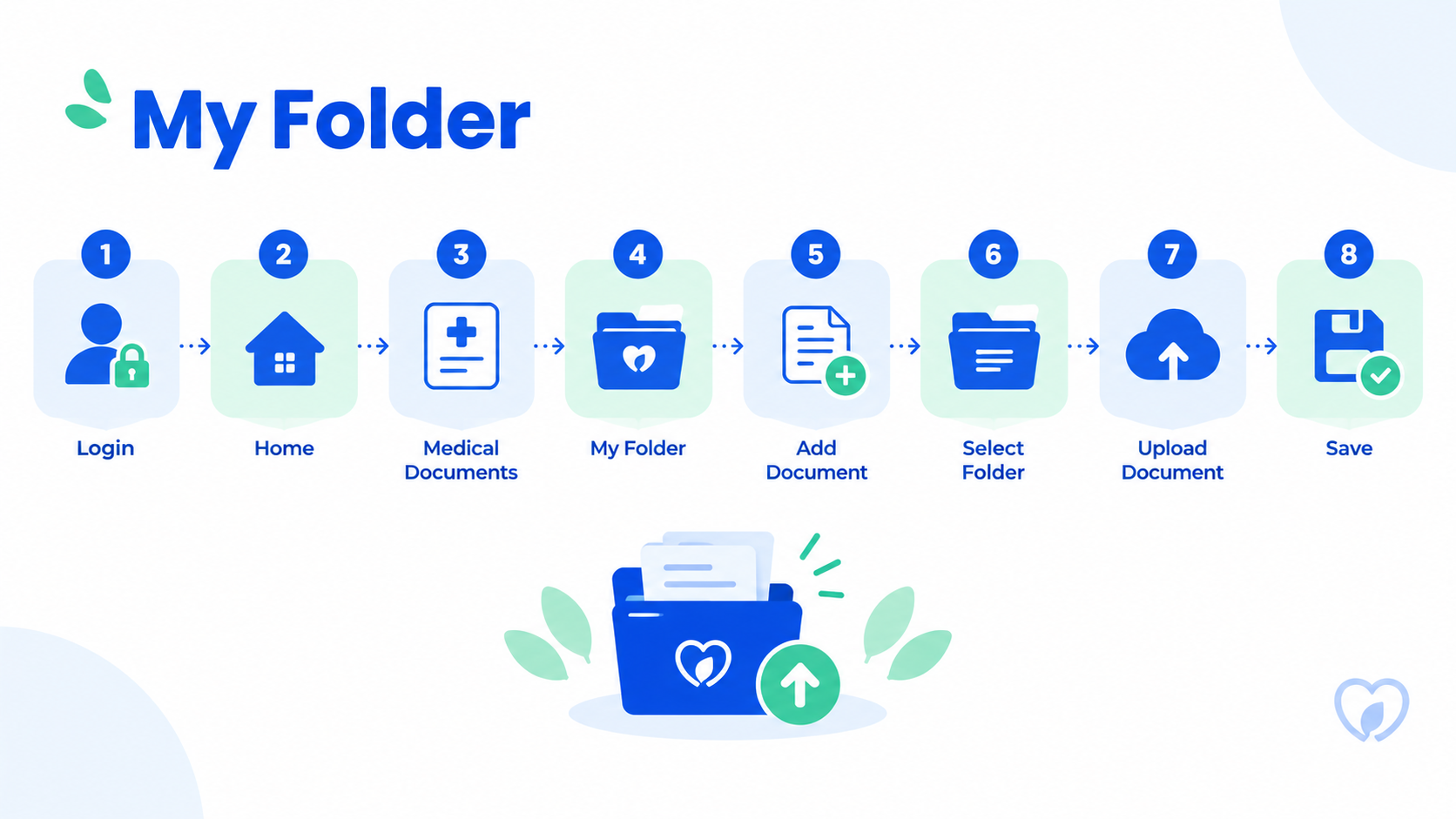
-
Open the Patient App and log in.
-
Go to Medical Documents.
-
The My Folder section manages patient documents.
-
Select Add Document to create the new folder name
-
Select the folder name and click on upload the document.
-
Save the document.
-
View the added document in My Folder.
From Doctor - View Doctor Documents
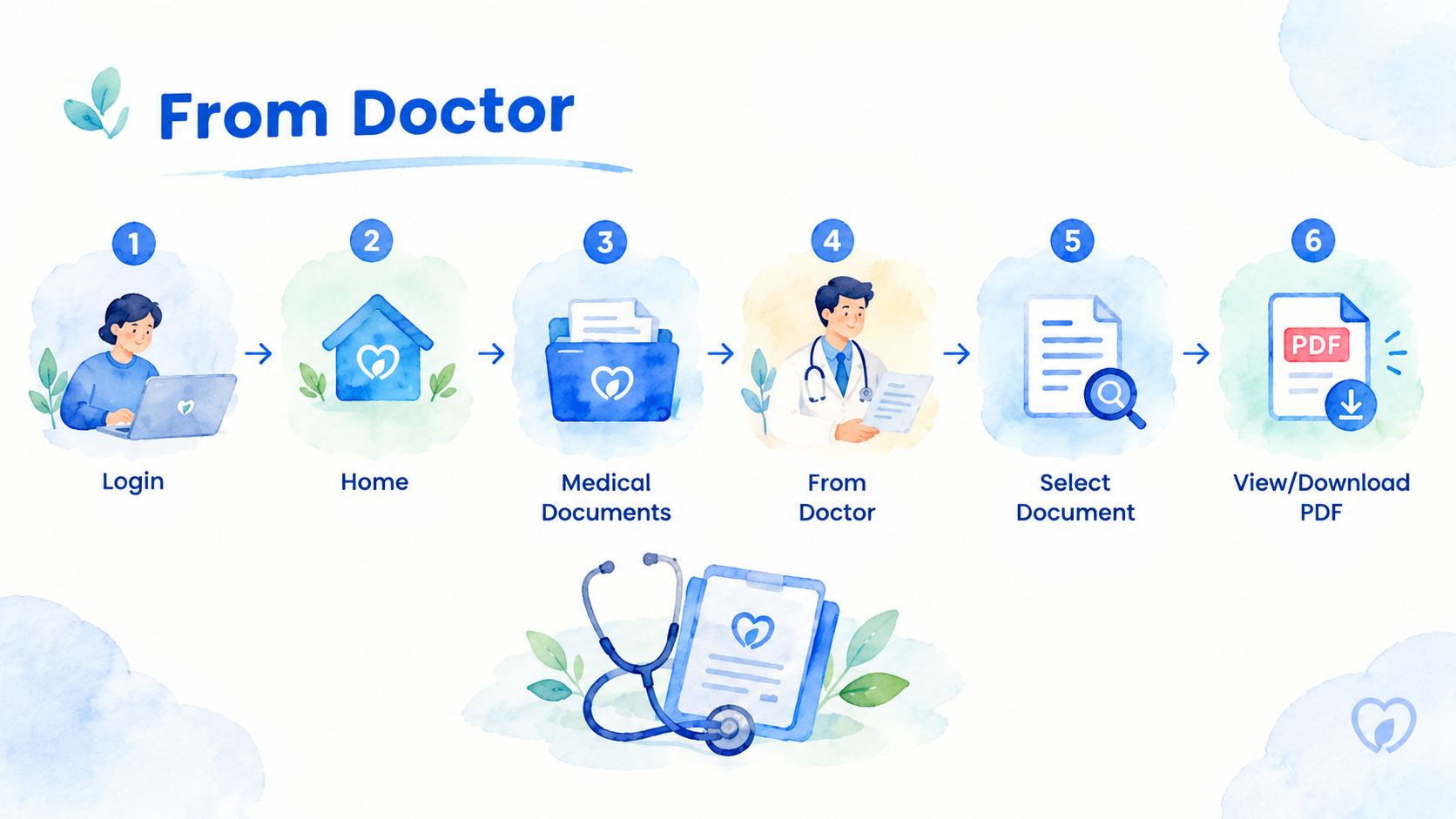
-
Open the Patient App and log in.
-
Go to Medical Documents.
-
The From Doctor section is located under My Folders.
-
Select the required document or order.
-
View the document.
-
Download or access the PDF when available.
The From Doctor section may include Laboratory Orders, Imaging Orders, Prescriptions, Clinical Notes, and Medical Certificates received from healthcare providers.
Doctor Mobile App - Getting Started
Getting Started with the Doctor App
To get started with the Doctor App, the user can follow these steps:
-
Go to the Google Play Store or App Store to download the Doctor App.
-
Open the Doctor App.
-
Get the username or phone number and password from the administrator.
-
Activate the account using the OTP sent to the registered phone number.
-
Enter the phone number and password to log in.
-
If required, set a new password when logging in for the first time.
-
After successful login, the doctor can start using the Doctor App.
Doctor Mobile App - Work planning
The Doctor App/Web supports doctors in managing appointments and organizing their healthcare activities. Specific work-planning features should be confirmed from the current Doctor Portal. The Doctor App/Web helps doctors manage their appointments, check their daily schedule, communicate with patients, and plan patient follow-up care. Doctors can use the Doctor App/Web to:
-
Check new appointments and view appointment details.
-
Check the schedule for the day and see upcoming consultations.
-
Manage available doctor slots through the Doctor Web Portal.
-
Conduct tele-consultations with patients through the app or web portal.
-
View patient cases and check information that needs to be provided to the patient, such as consultation results or documents.
-
Upload or provide results to the patient when required.
-
Plan follow-up consultations when the patient needs to meet the doctor again.
-
Arrange the next consultation based on the patient's follow-up needs.
Doctor Mobile App - Clinical work
The Doctor Mobile App provides doctors with a centralized clinical workspace to manage patient cases throughout the consultation and follow-up process. It brings together patient information, appointments, clinical records, orders, prescriptions, medical certificates, results, and other clinical activities within the patient's case. Doctors can access clinical work from three main areas: Appointments, Patients, and My Orders. This allows doctors to manage a patient's clinical information from the appointment, directly from the patient's profile, or through the patient's existing orders. The Clinical Work capability supports doctors in:
-
Reviewing patient cases - Doctors can open a patient's case and review the available patient information and existing clinical details before or during consultation.
-
Managing appointments and cases - Doctors can access clinical work directly from an appointment and continue managing the patient's case throughout
the consultation.
-
Creating laboratory and imaging orders - Doctors can create orders for laboratory tests or imaging examinations based on the patient's clinical needs.
-
Recording clinical notes - Doctors can document consultation findings, observations, and other relevant clinical information in the patient's case.
-
Issuing prescriptions - Doctors can create and issue prescriptions for the patient's treatment.
-
Creating medical certificates - Doctors can prepare and issue medical certificates when required.
-
Managing diagnosis information - Doctors can update the diagnosis remark and maintain relevant clinical information within the patient's case.
-
Uploading results - Doctors can upload or add relevant results to the patient's case for continued clinical review.
-
Managing existing orders - Doctors can review and manage patient orders through the My Orders section.
-
Editing clinical information - Doctors can update information when editing is available and permitted.
-
Closing patient cases - Doctors can close a case after the required clinical work has been completed.
This capability helps keep clinical activities connected to the patient's case and provides doctors with a centralized way to manage patient care, documentation, orders, and follow-up activities throughout the healthcare journey.
Doctor Mobile App - Communication
NironCare supports doctor-patient communication through Tele-Consult and in-app messaging. Doctors can join online consultations with patients through the Doctor App and communicate with patients through the Inbox.
Tele-Consult - Online Consultation
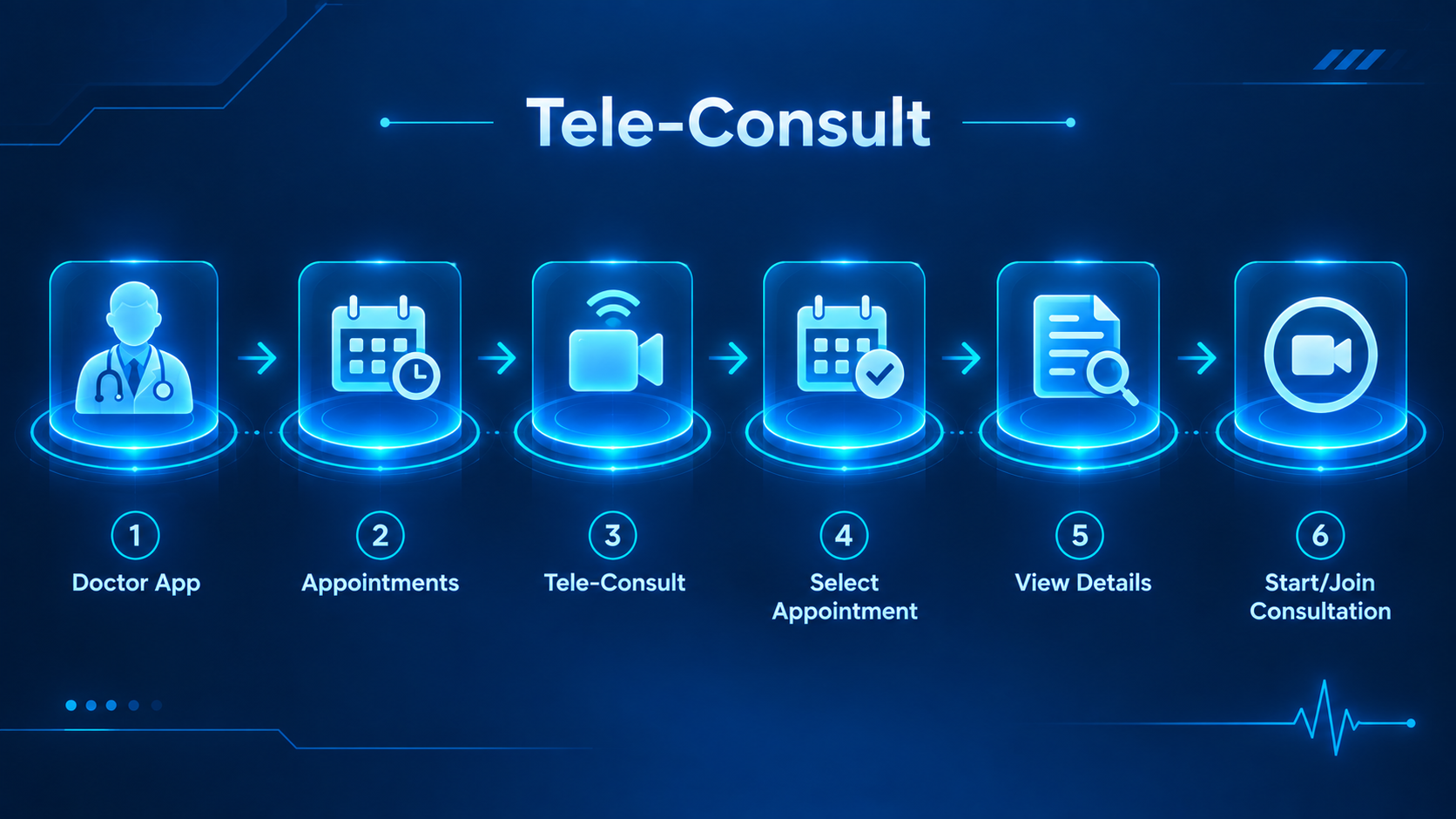
-
Open the Doctor App and log in.
-
Go to Appointments.
-
Select Tele-Consult.
-
Select the appointment.
-
View the appointment details.
-
Select Start / Join Consultation.
-
Join the consultation with the patient.
Inbox - Chat with Patient
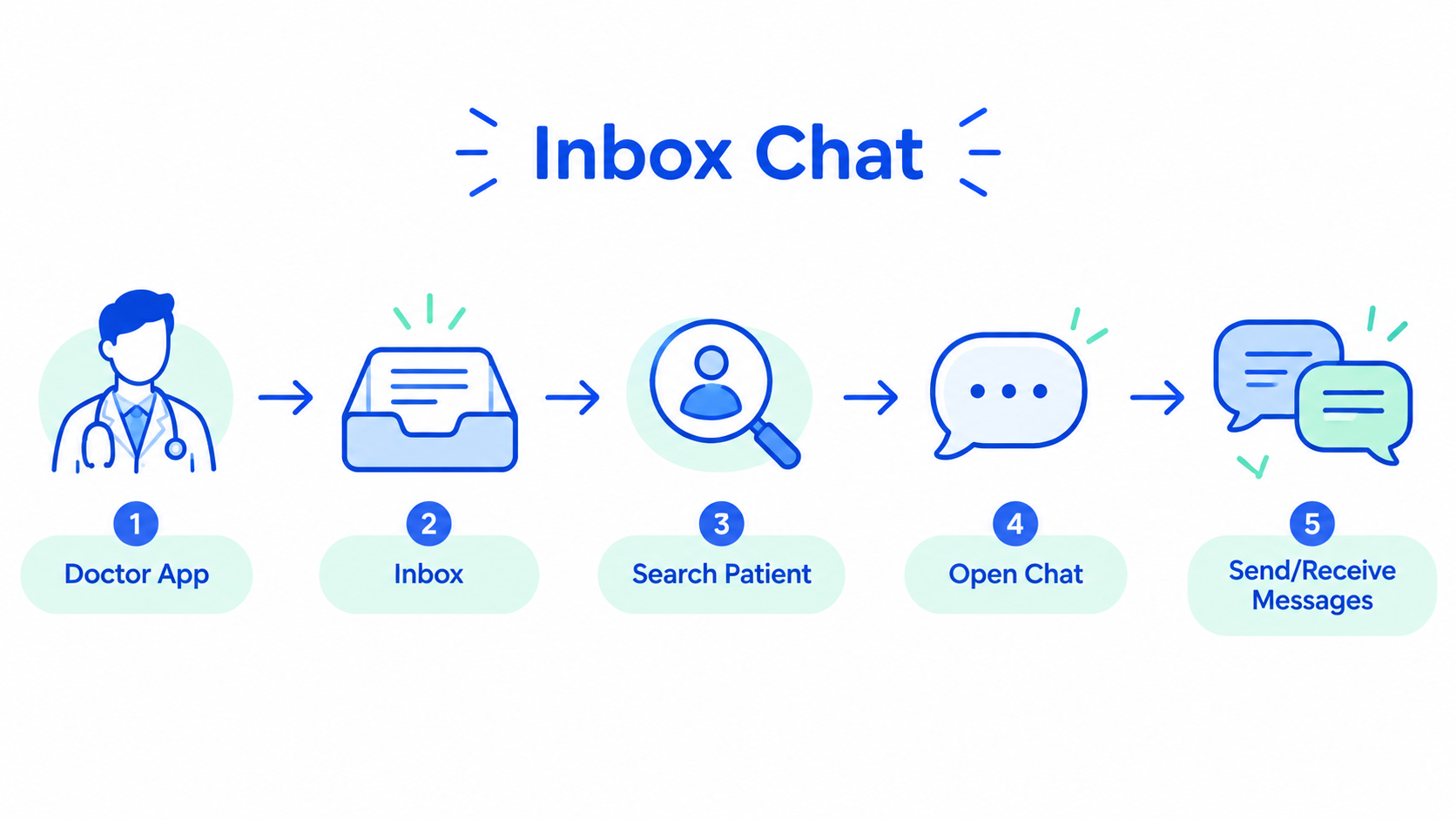
-
Open the Doctor App and log in.
-
Go to Inbox.
-
Find and select the patient.
-
Open the conversation.
-
Send and receive messages with the patient.